
Brightspace LTI 1.3 Admin Deployment Guide
- Christina Guo

- Dec 28, 2025
- 3 min read
Updated: Feb 17
Little You 3D is pleased to announce that we are now an official D2L partner! As a D2L Certified Partner, users with a Brightspace account can now log in directly using their Brightspace credentials to access the platform and start customizing their Little You 3D creations right away. In addition, Little You 3D can now be seamlessly integrated into your Learning Management System through Brightspace. To learn how to deploy Little You 3D as an LTI 1.3 (Advantage) external learning tool in Brightspace, please refer to the step-by-step guide below!

Overview
This guide provides step-by-step instructions for deploying Little You 3D as an LTI 1.3 (Advantage) external learning tool in Brightspace. To make deployment and usage clearer, this guide includes persona-based instructions tailored to common roles involved in K–12 and higher education LMS integrations.
Little You 3D enables secure single sign-on (SSO) and contextual access for students and instructors directly from Brightspace. The tool supports launch in a new window (recommended) or embedded mode.
Personas & Responsibilities
1. District / LMS Administrator
Primary responsibilities:
Registering and configuring the LTI 1.3 tool
Managing security, permissions, and data sharing
Ensuring compliance with district IT and privacy requirements
This guide section applies to you:
Prerequisites
Tool registration
Security, permissions, and data sharing configuration
Troubleshooting
2. Instructor / Teacher
Primary responsibilities:
Adding Little You 3D to courses
Launching the tool for classroom use
Supporting students during initial access
This guide section applies to you:
Adding Little You 3D to courses
Recommended launch settings
Basic validation and testing
3. Student / Learner
Primary responsibilities:
Accessing Little You 3D from Brightspace
Designing and saving 3D creations
This guide section applies to you:
Student access expectations
Common access troubleshooting
Prerequisites
Before you begin, please ensure:
You have Brightspace administrator access
LTI 1.3 is enabled for your Brightspace instance
You have received the required LTI registration details from Little You 3D
Step 1: Register the LTI 1.3 Tool
Log in to Brightspace as an administrator
From the Admin Tools menu, click Manage Extensibility.
From the LTI Advantage tab, click Register Tool.

Select Standard Registration (or manual configuration if required)
Enter the registration details provided by Little You 3D:
Tool Name: Little You 3D
Domain: https://www.littleyou3d.com
Redirect URLs : https://www.littleyou3d.com/lti/launch
OpenID Connect Login URL : https://www.littleyou3d.com/lti/login_init
Complete the registration and save
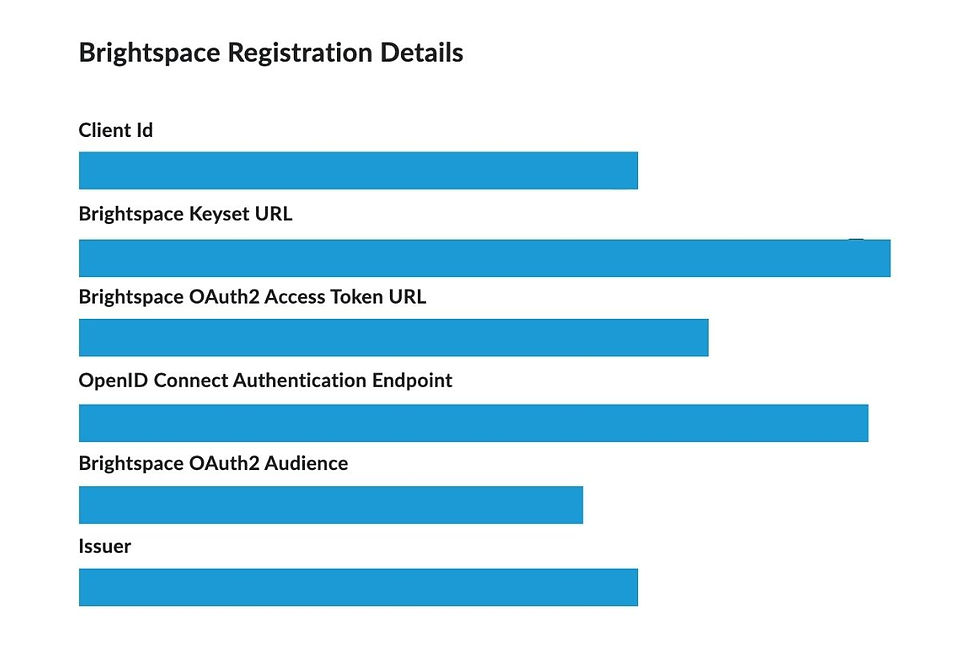
Once registered, please share your Brightspace registration details with us, and we will add this information to our application to enable authentication access.
Step 2: Configure Security & Permissions
Open the newly registered Little You 3D tool
Confirm the following security settings are enabled:
LTI 1.3 / OAuth 2.0 authentication
Secure launch enabled
Under Roles / Permissions, enable access for:
Learner (Student)
Instructor (Teacher)
Administrator (optional)
Step 3: Configure Data Sharing
Little You 3D follows a data minimization approach. Enable the following data sharing options:
User first and last name
User email address (if available)
User role (student / instructor)
Course/context identifiers
This information is used solely for authentication, role-based access, and associating activity with the correct course.
Step 4: Add Little You 3D to Courses
Go to a course
Select Content → Add Existing → External Learning Tools
Choose Little You 3D
Set the launch behavior to Open as External Resource (New Window)
Note: Opening in a new window is recommended to ensure consistent authentication behavior across browsers and devices.

Optional: Embedded Launch
Embedded launch is supported; however, some browsers may restrict third-party cookies, which can affect login behavior. If embedded launch is used, additional browser configuration may be required.
Step 5: Test the Integration
We recommend testing with both an instructor account and a student account.
Verify that:
Users can launch Little You 3D from Brightspace
Users are automatically logged in via SSO
Correct role and course context are applied
Troubleshooting
Issue: Tool launches but user is not logged in
Ensure the tool is set to open in a new window
Confirm required data sharing options are enabled
Check browser settings related to third-party cookies if using embedded mode
Issue: Tool not visible to students
Verify role permissions are enabled
Confirm the tool is added to the correct course content
Support
Here’s a detailed walkthrough video and link that guides you through registering the LTI tool and adding Little You 3D to your course. If you need assistance during deployment or testing, please contact Email: hello@littleyou3d.com
Our team is happy to assist with configuration, testing, or district-specific requirements.
This deployment guide is provided for Brightspace administrators and may be updated as platform features evolve.


Comments